Why Check Fonts on a Website?
You might need to audit fonts because you:
- Inherited a client site and do not know what is licensed
- Are redesigning and want to document current typography
- Suspect a commercial font is embedded without a web license
- Need to match a competitor's typography stack for a proposal
Whatever the reason, there are two approaches: manual inspection and automated scanning.
Method 1: Browser Developer Tools
Open the page in Chrome or Firefox, then:
- Right-click text → Inspect
- Select the Computed tab
- Scroll to
font-familyto see the active typeface
This tells you what renders on one element on one page — not the full picture.
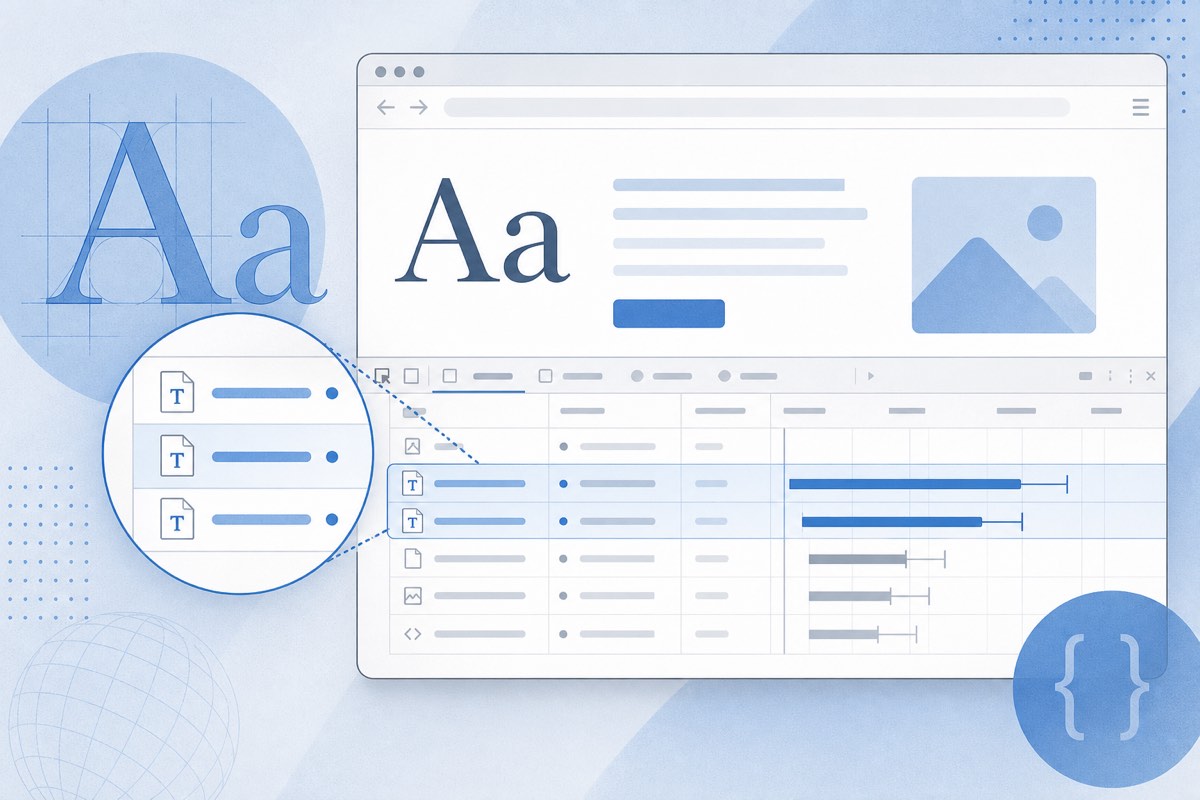
Method 2: Network Tab
- Open DevTools → Network
- Filter by Font (or search for
.woff,.woff2,.ttf) - Reload the page
You will see every font file downloaded — including self-hosted assets that never appear in CSS font-family alone.
Look for requests to:
fonts.googleapis.com/fonts.gstatic.com— Google Fontsuse.typekit.net— Adobe Fonts- Your own CDN paths — self-hosted fonts
Method 3: View Page Source / CSS
Search the HTML and stylesheets for:
@font-facerulesfont-familydeclarations<link>tags pointing to font services
Useful for a quick read, but large SPAs and bundled CSS can hide fonts loaded dynamically.
Method 4: Automated Font Scanning
Manual checks break down on sites with:
- Hundreds or thousands of pages
- Multiple templates (blog, product, checkout)
- Fonts added by plugins, themes, or third-party widgets
A font license checker like FontScanner crawls your entire domain, detects font sources per page, and flags known commercial typefaces against a licensing database.
What to Record in Your Audit
| Field | Why it matters |
|---|---|
| Font name | Identify the typeface |
| Source (Google, Adobe, self-hosted) | Determines license path |
| Pages where used | Scope of exposure |
| Weights/styles loaded | Licenses are often per file |
| License status | Open-source vs commercial |
Common Mistakes
- Assuming a system font (Arial on Windows) means no license needed — self-hosted copies still need rights
- Checking only the homepage — inner pages often use different fonts
- Trusting CSS names alone —
font-family: "Custom Sans"may map to a licensed commercial file
Conclusion
For a single page, DevTools works fine. For a production website, especially e-commerce or multi-section apps, automate the audit — see what to look for in a font license checker. You will catch fonts that manual inspection misses every time.